Voice integration
Your voice platform sends the caller’s product question to the Shop Agent as text, then reads its answer aloud. Use the Parloa setup below or ask your Neocom contact about another platform.
Before you start
Section titled “Before you start”Ask Neocom to enable the voice integration and supply its API key and the Assistant IDs you’ll use. One key can cover several agents.
Store the key in the voice platform’s server-side integration.
Endpoint
Section titled “Endpoint”POST https://agent.api.neocomapp.com/agent/v1/{assistant_id}/audio/Send one JSON request per caller turn with the header Content-Type: application/json.
| Header | Required | Description |
|---|---|---|
api-key |
Yes | The API key of your voice integration. |
neocom-conversation-id |
Yes | A UUID assigned by your voice platform. Reuse it for every turn in the same call. |
neocom-is-draft |
No | true uses the unpublished draft of the agent. Default false. |
neocom-user-id |
No | Your caller ID, up to 255 characters. On the first turn, Neocom uses it to identify the caller in Audience. |
{ "message": "Which mower suits a 500 m² lawn?"}| Field | Required | Description |
|---|---|---|
message |
Yes | The caller’s request as text, 1 to 512 characters. |
conversation_transcript |
No | If supplied, use a JSON-encoded list of messages. Each message has a role and content. |
Response
Section titled “Response”Read content aloud. The response includes IDs for the call and message, the turn number (run_id) and a list of annotations, which can be empty.
{ "conversation_id": "f9442327-9f2f-4ab3-b8cc-8ab79bc31c49", "run_id": 1, "message_id": "07be2fd9-90c1-43d7-a214-c0da412b08f9", "content": "The Compact 500 is suitable for a 500 m² lawn and costs 499 euros.", "annotations": [ { "type": "product_results", "product_results": [ { "sku": "M500", "title": "Compact 500", "price": "499.00", "currency": "EUR" } ] } ]}| Annotation | What to do |
|---|---|
advisor_question |
The spoken answer already includes the follow-up question. Use question.options to interpret the reply. |
product_results |
Up to three recommendations, in order of relevance. Use the SKU to look up the product in your storefront if the caller wants a link. |
Voice responses omit web chat sources and suggested replies.
Errors
Section titled “Errors”| Status | Meaning |
|---|---|
401 |
The API key is missing or wrong, or the agent is not linked to the integration. |
400 |
The conversation ID does not match the stored call. |
409 |
The conversation ID was used before and that call has expired. Start a new ID. |
422 |
Validation failed, for example an empty or too long message. |
423 |
A request for this call is still running. Send one turn at a time per call. |
429 |
The default rate limit is 600 requests per minute per API key. Retry after the limit resets. |
What you see in the Admin Portal
Section titled “What you see in the Admin Portal”Filter Events › Conversations for the voice channel to find a test call. Your voice platform handles the consent prompt. Neocom uses the account default under Settings › Consent for these conversations.
Set up Parloa
Section titled “Set up Parloa”Open the agent in Parloa AMP Studio. Have the API key and Assistant ID ready.
-
Create the skill. Under Skills › + Add skill, choose Custom Skill, name it
Neocom Agentand select Add Skill. Paste the skill instructions into Instructions. Parloa skill setup -
Add a tool. Under Tools › Add, name it
request_neocom_agent. Use this Description.Ask the Neocom Shop Agent for product advice and recommendations. -
Add the API call. Under Integrations › Add, choose API Call. Name it
Neocom Parloa endpointand enter these values.Field Value HTTP Method POSTURL https://agent.api.neocomapp.com/agent/v1/YOUR_ASSISTANT_ID/audio/Content Type application/json -
Set the headers. Type
{in a value field to select a variable.Header Value api-keyYour API key neocom-conversation-id{{system.conversation_id}}(System → conversation_id)neocom-user-id{{system.requester_id}}(System → requester_id)Set the API key in the server-side integration. Include the optional caller ID only when you want to link the call to a shopper profile.
-
Set the request body.
{"message": "{{agent.message}}"}Create the Agent variable
messagewith the description “The caller’s latest question in their own words.” To include a transcript, also mapconversation_transcriptto the System variable of the same name. Select variables first, then enter the surrounding JSON.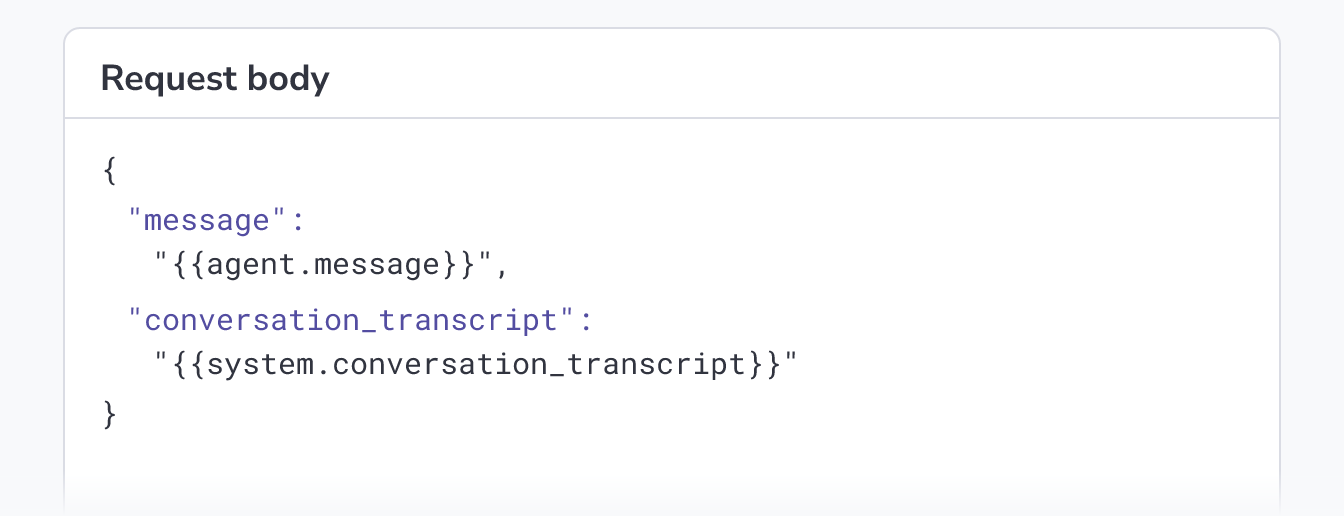
-
Map the response. Select JSON for Response format. For both mappings, set Map from to Response body, Destination to Agent, and enable Required.
Source Name Description $.contentresponseThe main response from the chat agent $.annotationsannotationsAnnotations (including product recommendations) Parloa’s guide: API Call.
-
Assign the skill. In the Subtask Agent’s Resolution settings, select
Neocom Agent. -
Test and publish. In Chat Preview, ask a product question and a follow-up. Check that Parloa calls the tool once per question, keeps the same conversation ID and reads the answer. Then publish your Parloa agent.

Instructions for the skill
Section titled “Instructions for the skill”Call request_neocom_agent for product availability, buying advice and comparisons.Send the caller’s latest question in the first person, including any new detailsthey have given you. The agent remembers earlier requests in the call.
Call the tool at most once per caller message. Keep message within 512 characters.Read the mapped response aloud. If annotations contains an advisor_question,the response already asks it. Use its options to interpret the caller’s reply.For product_results, use titles and prices when discussing recommendations.Keep SKUs internal.If something does not work
Section titled “If something does not work”Send your Neocom contact the Assistant ID, error status and the conversation ID of a test call, if available.